 360ToolHub
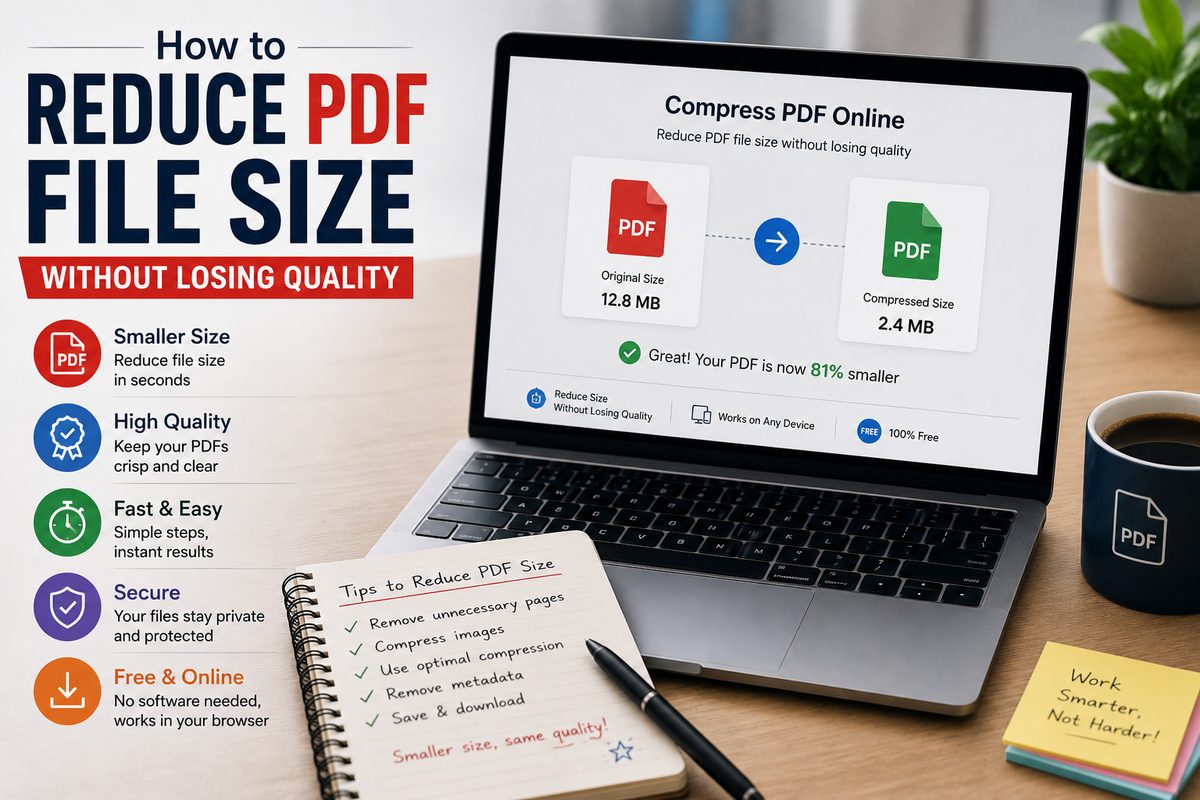
"Without losing quality" is doing some work in that headline — the honest answer is that shrinking a PDF almost always involves a trade-off somewhere. The good news is that trade-off is often invisible in practice, as long as you understand what's actually making your file large in the first place.
Why PDFs get big
Most oversized PDFs fall into one of two categories:
- Scanned or image-heavy documents. A scanned contract or a PDF full of screenshots is really just a sequence of images wrapped in a PDF container — and images, especially at high resolution, take up far more space than text.
- Text-based documents with embedded fonts or graphics. A Word-exported PDF with custom fonts, charts, or a logo on every page can bloat surprisingly fast, even though the actual text content is tiny.
Knowing which one you're dealing with changes what "compressing" it should even do.
For scanned or image-heavy PDFs
This is where compression tools make the biggest visible difference. The typical approach re-renders each page as an image at a slightly lower resolution and quality, then rebuilds the PDF — which is exactly how most free online PDF compressors work under the hood.
The trade-off is real but usually minor: text in a scanned document might look very slightly softer at high zoom, but is completely fine for normal reading, printing, or emailing.
Try it on your file
Pick a compression level and see the before/after size instantly.
For text-heavy PDFs
Here's the part that surprises people: compressing a mostly-text PDF often barely shrinks it, because text is already extremely compact. If a compression tool re-renders every page as an image (as most do), it can actually make a pure-text PDF larger, not smaller, since a rendered image of a page of text takes more space than the text itself did.
If your PDF is mostly text and already reasonably small, it may simply not need compressing. The size is more likely coming from embedded fonts or images elsewhere in the document.
A few other ways to shrink a PDF
- Remove pages you don't need before sending, rather than sending the whole original document.
- Merge related files thoughtfully — combining five separate scanned receipts into one PDF is often smaller overall than five separate file headers and structures.
- Re-export from the source if possible — a PDF exported directly from Word or Google Docs at a lower embedded image quality is often smaller than compressing an already-exported PDF after the fact.
Combining multiple PDFs?
Merge them into one file in the right order, free.
The bottom line
Scanned and image-heavy PDFs compress dramatically well. Text-heavy PDFs often don't need it at all. Knowing which one you're holding before you compress saves you a failed attempt — and sometimes a file that got bigger instead of smaller.